
“Error establishing a database connection” is a common WordPress problem website owners can encounter. It’s one of the most frustrating errors a WordPress user can face, mainly because it gives you almost no information about why the connection failed, just that it did. So, you have to have a list of some many things that could have gone wrong behind the scene, and fixing it can feel like playing whack-a-mole.
While this is a common problem that can happen to a WordPress site, letting it linger for long means you are losing traffic, which translates to loss of sales if you have a service to render or merchandise to sell; generally it is not a good look on your brand if your users cannot access your site even if you have nothing to sell. There are many reasons why this could happen and how to solve this problem. But first, it is important to understand what this error is about and why it happens.
What Is “Error Establishing a Database Connection”?
“Error establishing a database connection” is an error that happens when a visitor interacts with the frontend of your website and your website is unable to establish a connection with the database.
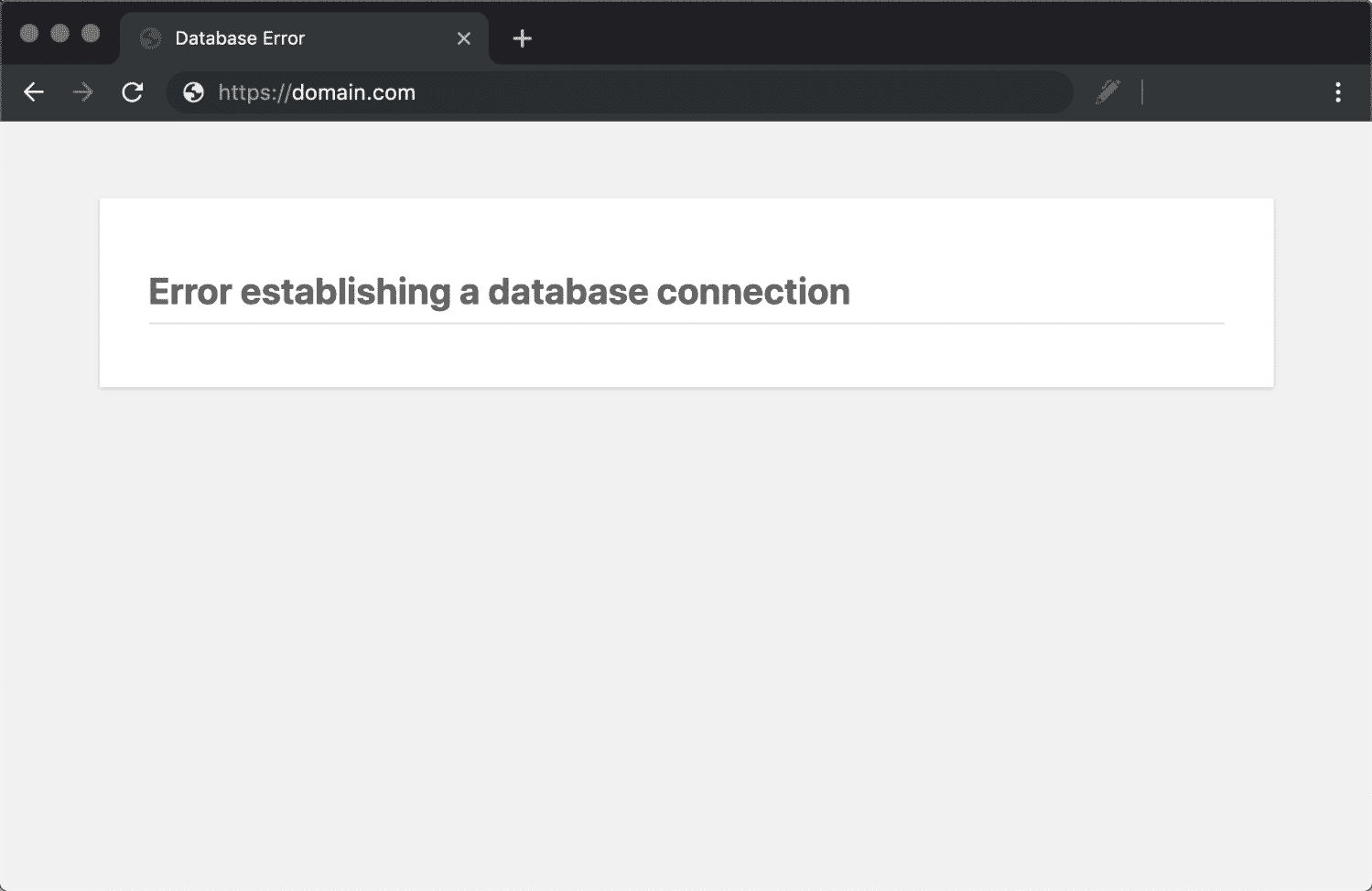
Here is a simpler explanation: Let’s think of your WordPress site as a massive, organized library. Think of the librarian of this massive library as your web browser. All of your actual content like posts, comments, settings, and every user detail is stored in the organized shelving and card catalogue, which is the Database (MySQL).
The database connection is the Librarian’s ability to walk to the shelves, find the book, and hand it to the reader.
When you see the error establishing a database connection message, it means the Librarian is unable to find or access the content in the database. The reader (your visitor) is locked out, and the Librarian (the browser) has nothing to show. This makes your website inaccessible to everyone, including you, the admin.
Reasons for and “How to Fix Error Establishing a Database Connection”?
There are plenty of reasons why this could happen, but the most common causes of this error are:
- Wrong database credentials
- Database server downtime
- Corrupted database
Wrong Database Credentials
You may be wondering how this can happen, but those who are familiar with WordPress and its workings will tell you for free that this is a common occurrence, especially when you are migrating to a new host, an accidental change in credentials, or a backup restore gone wrong.
How Do You Fix a Wrong Database Credentials?
Remember you have been shut out of your website, and to fix this error, you will be working entirely in the backend of your website. You want to access your wp-config.php in the root folder of your WordPress installation.
- Access wp-config.php: If you are on a shared hosting plan like a lot of people, there is a good chance that you can access your WordPress installation folder with cPanel already made available by your host. If you are hosting on a cloud server or personal server, you should make use of an FTP / File Manager (like FileZilla or SCP) to access the root folder of your WordPress installation.
- Identify the Critical Lines: Open the file for editing and look for the following four lines. Ensure the values exactly match the details provided by your hosting provider. Note that these values are case-sensitive.
define( 'DB_NAME', 'database_name_here' );define( 'DB_USER', 'username_here' );define( 'DB_PASSWORD', 'password_here' );define( 'DB_HOST', 'localhost' );- Verify DB_HOST: The DB_HOST value is typically localhost, but some hosts use a different value (e.g., mysql.yourdomain.com). Double-check this against your hosting documentation. If any detail is wrong, correct it, save the file, and refresh your website. This is the first step to fix database connection WordPress wp-config.php.
Database Downtime
A database is typically resource-intensive, so when a visitor accesses your website, your database is called into action and the server goes to work. You’re probably thinking this shouldn’t be a problem, and while that’s often true, your choice of hosting plan could actually be enough reason you’re seeing the “Error establishing a database connection” message on your WordPress site.
Let’s assume you opted for a cheap hosting plan to save some cash (and/or because you’re not expecting large amounts of traffic to your site anytime soon). There’s a good chance your hosting company has placed you on a server with other websites, which is also known as shared hosting. These sites all share the same resources. Most of the time, they don’t experience high traffic volumes, since cheap plans aren’t designed for that. However, as long as these websites (yours included) are online, there’s always the possibility of a traffic surge. When that happens, your database can become temporarily unreachable.
Another instance where your database can experience downtime is when an intensive task is running in the background, such as the bulk conversion of images to WebP format. From experience, this task has caused the database connection to break, requiring a PHP restart to restore functionality.
How do you fix a database downtime?
You may need to contact your hosting provider to check the status of the server where your site is hosted. The response you receive should guide your next steps.
If your host confirms that the server is under heavy load, it’s best to wait until performance returns to normal. However, if the server is operating normally, you can ask your host to restart PHP on your server.
If you manage your own server, you can restart PHP-FPM manually (for Nginx servers) by logging in via SSH and running the following command in the terminal:
sudo service php8.2-fpm restart
Make sure to confirm your current PHP-FPM version by navigating to the directory with:
cd /etc/php/For Apache servers, you can try one of these commands:
sudo systemctl restart apache2.serviceor
sudo service apache2 restartIf PHP crashing was the cause, error establishing a database connection in WordPress, your site should start loading again after doing any of the above.
Database Corruption
Database corruption simply means that your database is broken. Fret not; there’s a recommended way to fix it according to WordPress documentation.
It’s not unusual to see a slightly different error when you access https://yoursite.com/wp-admin, specifically one that mentions “one or more database tables are unavailable.”
How to Fix Database Corruption
WordPress includes a built-in repair tool that you can easily enable by editing your wp-config.php file. To activate this tool, add the following line just before the line that says:
/* That's all, stop editing! Happy blogging. */Insert:
define('WP_ALLOW_REPAIR', true);Save the file, then open your browser and go to this address:
https://yoursite.com/wp-admin/maint/repair.phpA Repair Database button will appear on your screen. Click the button to start repairing your database.
Once the repair is complete, it’s important to return to your wp-config.php file, remove the line you added earlier, and save the file again.
As a last resort if all else fails
If you’ve tried all the fixes above and your website still displays the message “Error establishing a database connection” it’s likely that WordPress plugin auto-updates are enabled by default, and a recently updated plugin is preventing your website from communicating with the database.
To fix this, go to your cPanel and open the File Manager (or, if you’re using a cloud or personal server, use FileZilla or similar software). Navigate to your WordPress installation folder, then open the wp-content directory. Inside, locate the plugins folder and rename it to plugins-bak.
Renaming the folder prevents WordPress from recognizing it, which effectively disables all your plugins. Once that’s done, reload your site, the error should now be resolved.
Increase PHP Memory Limit
In rare cases, your server may simply be running out of memory while trying to process the request, resulting in “Error establishing a database connection” message.
You can fix this by increasing your PHP memory limit. To do this, open your wp-config.php file and insert the following line:
define('WP_MEMORY_LIMIT', '256M');If this line already exists, increase the memory value as needed.
Preventing Error Establishing a Database Connection
Technology is technology, and sometimes, technology breaks. It’s good practice to always create a backup of your database, or better yet, your entire WordPress website.
Additionally, it’s advisable to disable automatic updates for WordPress and plugins. It’s not uncommon for these updates to cause database connection issues. By updating manually, you can more easily identify the cause if a specific plugin or update leads to a database connection problem.
Conclusion
We have finally come to the conclusion on how to fix error establishing a database connection in WordPress, which can stem from many sources, commonly, wrong credentials or bad plugin updates can bring your site to its heels. It is imperative that you outline the possible cause of losing connection to your database before applying the fixes outlined above, as this saves you valuable time.
Finally, prevention is your best bet. Trying to fix a problem that can have different reasons to fail is not a fun exercise, so ensure you have a schedule for regular backups, manual updates, and proper server management, because indeed, prevention is always better than looking for a cure.